
The Routes Pane is where routes are created, edited, and published for drivers. This tool allows dispatchers to build optimized service routes while ensuring high-priority customers are not missed.
1.) Create a New Route
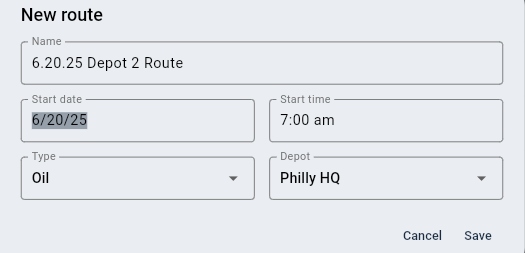
To begin, click New Route. A setup window will appear where you'll need to enter:
-
Name (e.g.,
6.20.25 Depot 2 Route) -
Start Date and Start Time
-
Type (e.g., Oil)
-
Depot (required for defining start and end locations)
2.) Navigate the Routes Pane Interface
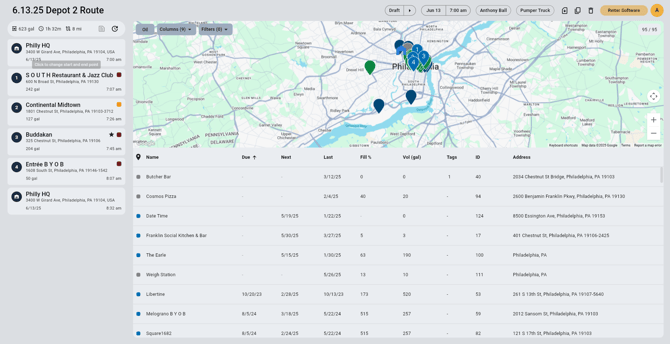
Once your route is created, you'll land on the main Routes Pane. Here’s what you’ll see:
📍 Map with colored pins
📋 Left panel showing your depot and scheduled stops
📊 Table view below, displaying service data for each account
3.) Understand Pin Colors & Prioritize Accordingly
Each pin is color-coded based on the customer's current service status. These colors are key to building an efficient route. The color is determined based on how close a customer is to their due date.
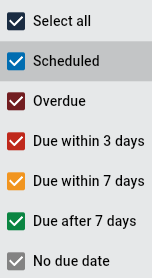
Blue- Scheduled Stop
Maroon- Overdue Stop
Red- Due Within 3 Days
Yellow- Due Within 7 Days
Green- Due After 7 Days
Grey- No Due Date
➡️ Goal: Building routes that prioritize Maroon, Red, and Yellow accounts will increase efficiency.
💡 Tip: For more information on how due dates are calculated, refer to our article: How Do I Choose My Due Date Type
4.) Add Customers to the Route
Clicking on a pin will open that customer’s profile. From here you can review service history and determine eligibility. To add them to your route, simply click ➕ Add.
5.) Review the Route and Optimize 🚛
As stops are added, they'll appear in the left-hand route timeline.
Once you’re ready:
-
Press the Optimize button to reorder stops for the most efficient path.
-
Review total gallons, estimated drive time, and distance at the top.
6.) Lock or Star Specific Stops 🔒⭐
For added control:
-
🔒 Lock a stop to hold its current position. Ideal for time-sensitive pickups.
-
⭐ Star a stop to mark it as high priority. This star will be visible to the driver on their device.
📸
7.) Finalize the Route by Scheduling It 📆
Once the route is complete and optimized, it must be scheduled for it to appear on the driver's app.
-
Click the arrow next to the "Draft" label at the top of the screen and select "Schedule"
-
Assign a Driver
-
Select a Vehicle
This officially publishes the route and makes it active for driver route running.
✅ Wrap-Up
The Routes Pane helps dispatchers balance service urgency with route efficiency. By using pin statuses, optimization tools, and stop controls like lock and star, you can confidently build routes that ensure reliable and timely service.
For a breakdown on running a route, click here