Running a route in Route Simplified turns a scheduled plan into real-world service. This guide walks drivers through each step — from opening their assigned route to collecting material and completing the job.
✅ Step 1: Make Sure the Route is Published
Before a route can be run, it must be set to Scheduled status in the web dashboard.
To do this:
- Click the arrow next to the "Draft" label at the top of the screen and select "Schedule"
- Assign a Driver
- Select a Vehicle
This officially publishes the route and makes it active for driver route running
For a full breakdown on route building, click here
📲 Step 2: Open the Route in the Web Driver App
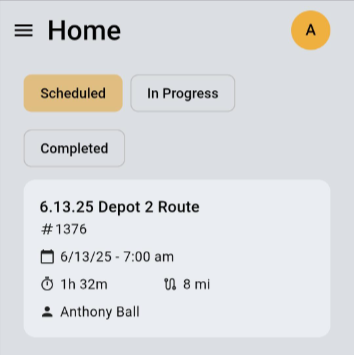
Once logged into the Mobile Web App, the driver lands on the Home Screen, where routes are organized by status:
-
🟨 Scheduled – upcoming assigned routes
-
⏳ In Progress – active routes
-
✅ Completed – submitted routes
👉 Tap the scheduled route to begin.
🚦 Step 3: Preview the Route & Start
After selecting a route, the drive will see a preview of the full stop list and route summary
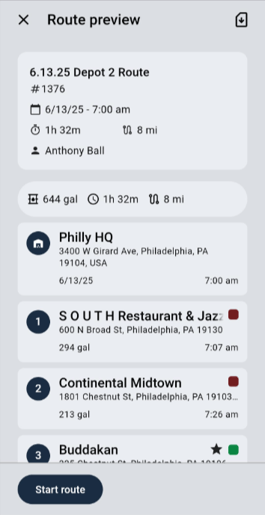
From this screen the driver can:
- Review total volume, time, and mileage
- See all scheduled stops with service status
- Tap Start Route to begin
📍 Step 4: Enable Location Sharing
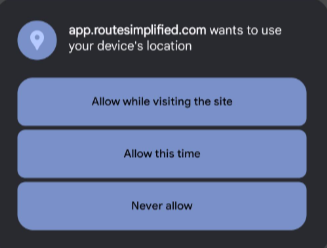
If not already enabled, tapping Start Route will trigger a prompt to share the device’s location
✅ Drivers should select “Allow while visiting the site” to:
-
Track arrival times
-
Optimize routing
-
Enable GPS navigation
📌 Step 5: Navigate to and Manage a Stop
After route start, the driver taps the first stop to view location details and tools.
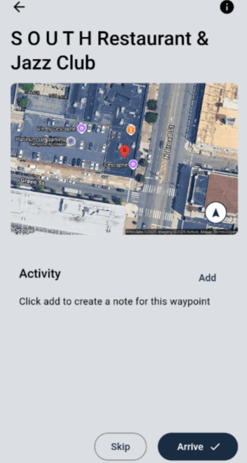
From here, they can:
-
Tap Arrive
- Skip Stop if container is inaccessible
-
View a satellite map of the location
-
Tap Add to leave comments
-
Tap the map image to open Google Maps navigation from the drivers current location to the stop.
🛢️ Step 6: Collect Material and Record Data
After arrival, the driver physically collects the material, then records the volume in-app.
Steps:
-
Tap the Add icon next to the container
-
Choose measurement type (e.g., gallons collected)
-
Enter the amount collected and remaining
-
Tap Save
-
Tap Complete to finish the stop
- Repeat for all assigned stops
💡 Tips:
-
Stay consistent with your measurement method
-
Use the activity section for notes (e.g., stolen oil, overflow, blocked access)
🏁 Step 7: Complete the Route
Upon arriving at the final stop, the driver will be prompted to complete the full route.
✅ Ensure:
-
All stops are completed or skipped with comments
-
All data is entered and saved
-
Notes or flags are added for dispatch review
Tap Complete Route — and you’re done!