
The Customers Pane in Route Simplified is where all customer records are created, configured, and managed. This is one of the most critical components of the system, as all collection data is tied directly to customer profiles. Below is a comprehensive guide covering all the setup steps and features available.
🧾 Required Data to Get a Customer Started
At minimum, a Customer Name and Address are required to add a customer to the system.
To make a customer eligible for routing and collections, the following additional fields must be configured:
- Service Type
- Specify whether the customer requires Oil and/or Grease Trap service.
- Depot Assignment
- Each customer must be linked to a depot that will manage their service.
- Due Type
- Defines how collection frequency is tracked (interval-based, or fill rate based.)
🧾 Customer Details
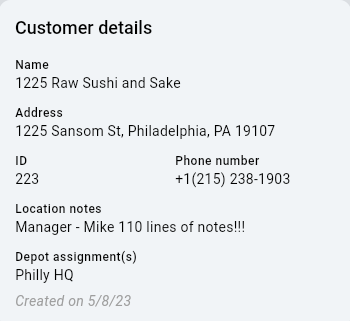
The Customer Details section applies across all service types. This is information specific to that particular service location, enter an account name, address, ID, Phone Number, and Notes.
🔁 Manage Services
Define which services the customer will receive:
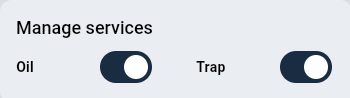
Toggling a service activates its configuration tab.
🏷️ Add Tags
Apply custom labels such as:
- "High Volume"
- "Seasonal"
- "New Account"
- "Region 3"
Tags improve filtering and categorizing customers
📄 Add PDF Documents
Attach important documents like:
- Service Agreements
- Contracts
- Regulatory Certifications
These files are stored within the customer profile.
⚙️ Service Specific Settings
After toggling on a service type, you gain access to additional configuration options within that tab.
Oil Service Settings Fields
| Field | Purpose |
|---|---|
| Due Date / Last Service | Tracks next and last collection |
| Service Interval | Sets recurring schedule (e.g., every 14 days) |
| Due Date Type | Fill rate or Service Interval |
| Fill Rate (Fixed) | Monthly usage estimate |
| Percent Full / Fill Level | Fill percentage and current volume |
| Onsite Capacity | Total container volume |
| Waste Deduction | Product loss discount |
| Oil Price | Valuation per gallon |
| Index % | Price modifier |
| Entry Info / Service Email | Notes and auto notifications |
| Always Mark Important | Highlights high-priority customers |
📍 Location Pin
- Default pin drops at the customer’s address
- Click Edit to place the routing pin at the container’s precise location
- Helps drivers find the exact pickup point
🕒 Service Windows
- Define allowable service hours by day
- Days without entries default to No Service Windows
- Ensures efficient routing and access compliance
🛢️ Containers
Containers must be created in the Assets Pane first. Once available, they can be assigned to customers.
- Track capacity and usage
- Input type, size, and quantity
- Tied directly to service planning and fill calculations
📅 Service History
Each service tab logs all previous collections:
- Dates, times, and volumes
- Supports customer inquiries and audit trails
📊 Table View
The Customers Table provides an interactive dashboard for managing all customer records.
📑 Toggling Columns
Click the “Columns” button to select what information you want to display.
Examples include:
- General Info (Name, ID, Address)
- Oil Metrics (Oil Due, Fill %, Capacity)
- Trap Metrics (Trap Due, Capacity, Last Service)
🔍 Filters
- Apply filters by clicking a column header and selecting filter conditions
- Use the “Filters” button to view or clear all active filters
- Helpful for refining by depot, tags, service status, etc.
💾 Save Default View
- Open the three-dot menu (⋮) in the top-right of the table
- Select “Save as Default View” to preserve your layout and filters
📤 Export to Excel
From the three-dot menu (⋮)
- Select “Download”
- Downloads your current filtered table view with all visible columns
- Useful for route planning, audits, or external analysis