If you receive a customer call-in and need to schedule a collection, follow these steps to ensure the route is created and managed properly.
✅ Step 1: Create a New Route named "Call-ins [MM/DD/YYYY]"
-
Go to the Route Builder in your system.
-
Create a new route associated with the depot the calling account belongs to.
-
Title the route "Call-ins" followed by the date the call-in occurred (see example below).
Call Ins - [MM/DD/YYYY]
(e.g., Call Ins - 04/30/2025)
✅ Step 2: Receive call-ins and update set capacity and record notes
- After receiving your call-in navigate to the customers tab and search for the account associated with the call-in.
- Click on the account and and navigate to the associated service type (e.g Oil,Trap)
-
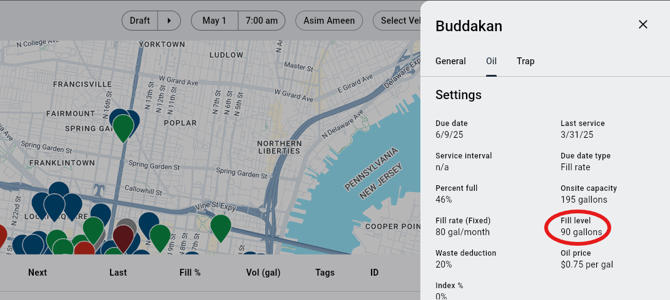
Update the fill level to 100% (Full), this value should equal the onsite capacity. Do this by clicking on "Fill Level". Alternatively the due date can be changed by clicking on "Due Date". Set the due date to reflect the call-ins request
-
Add any relevant notes from the call into the route details (e.g., instructions, special access needs, urgency, etc.).
✅ Step 3: Group Additional Call-Ins
-
Throughout the day, continue adding any new call-ins to this same route.
-
Use this route as a starting point for building the next day's route.
✅ Step 4: Manage High Volume or Spread-Out Calls
-
If the number of call-ins becomes too large or the accounts are spread across distant locations:
-
Duplicate the original call-in route.
-
Distribute the accounts between the duplicated routes based on proximity or service region.
-
✅ Step 5: Finalize and Assign the Route
Once all call-ins are added and organized:
-
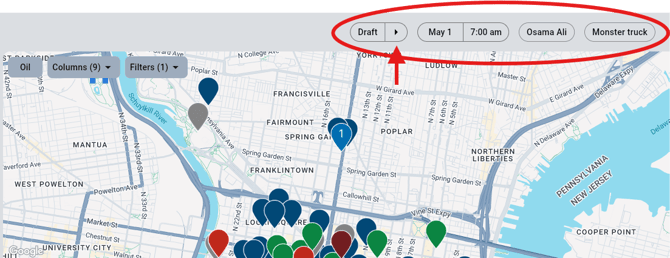
Assign a service day to the route.
-
Assign the route to a driver.
- Assign a vehicle
-
Change the route status from “Draft” to “Published.”
✅ Step 6: Ready for Dispatch
Your call-in route is now live and visible in the system, ready to be executed by the assigned driver on the scheduled day.