The Users Settings Pane is where you manage access to your Route Simplified environment. From here, you can add new users, assign depots, and fine-tune permissions based on roles to ensure everyone sees only what they need.
🔍 Accessing the Users Pane
To view or manage users:
-
Click on the Settings icon in the left navigation menu.
-
Select Users from the list.
Here, you'll see all registered users along with key details like:
-
Name
-
Email Address
-
Last Active Time
-
Role (e.g., Owner)
-
Status (Active/Inactive)
➕ Adding a New User
To add someone new to your workspace:
-
Click the “Add user” button in the top-right corner.
-
Fill out the form fields:
-
First Name
-
Last Name
-
Email Address
-
Depot – Select which depot the user should be assigned to using the dropdown menu, or grant access to all depots.
-
*Note only data from the users assigned depot can be viewed by the user*.
-
⚠️ New users are given full permissions by default. You can edit these permissions after creation.
To edit permissions, go to:Settings > Users > [Click User] > Permissions
👤 Viewing and Editing a User's Details
Clicking on a user will open a detailed panel where you can:
-
View or edit their name and email
-
Change assigned Depot access
-
Review and adjust Permissions
-
Deactivate the user if needed
At the bottom of the screen, the “Deactivate user” button allows you to temporarily remove their access without deleting their account.
🔐 Editing User Permissions
Permissions control what a user can access within Route Simplified. This allows you to tailor the interface to fit job-specific roles.
After opening a user’s profile, click on Permissions to view the options.
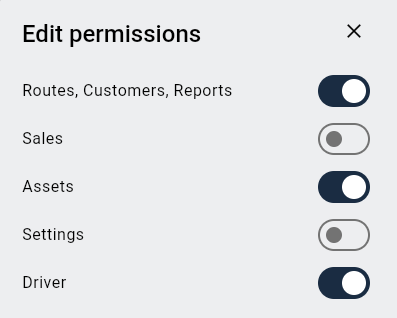
🔄 Toggle Access for:
-
Routes, Customers, Reports – Dispatching, tracking, and reporting tools.
-
Sales – Assign Collections to Sales
-
Assets – Vehicle, tank, or container management.
-
Settings – Access to company, oil and user, and configuration settings.
-
Driver – Route assignments
- Save- After making changes, hit the save icon
🎯 Tip: Use the toggles to restrict access to only the features relevant to each user's responsibilities.
✅ Summary Checklist
-
Add new users from the Users Pane
-
Assign them to the correct depot
-
Adjust permissions to fit their role
-
Review “Last Active” timestamps regularly
-
Deactivate old or duplicate accounts