🚩 How Drivers Use the “Flag” Function in Route Simplified
The Flag feature is designed to help drivers quickly report issues or alert their team to something that needs attention. Flags can indicate problems like potential theft, irregularities, or stops needing review — all while keeping the rest of the team in the loop in real time.
🚨 When and How to Use Flags
Step 1: Tap “Arrive” at the Stop
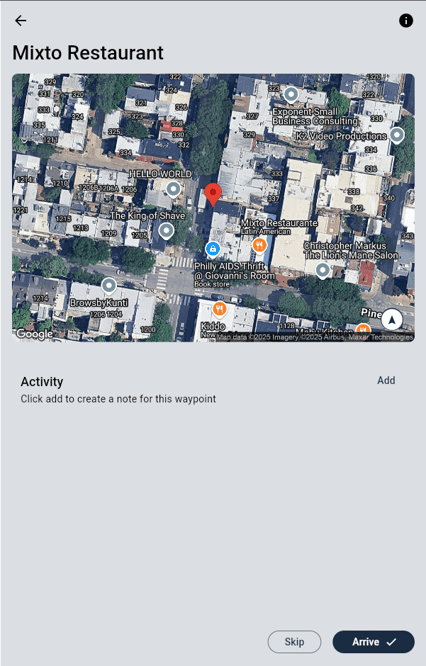
After arriving at your destination, press the “Arrive” button at the bottom of the screen.
Step 2: Click “Add” Under Activity
Click the “Add” button in the Activity section. This opens up the options for entering a note or flagging the stop.
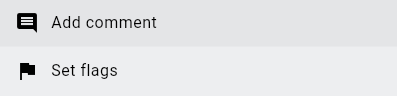
Step 3: Select a Flag and Add Details
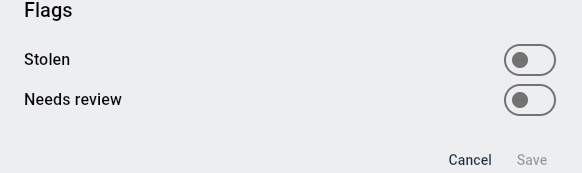
After clicking "Add", you'll be presented with flag options:
You can:
-
Toggle “Needs review” to alert dispatch that something about the stop needs attention.
-
Toggle “Stolen” to flag suspected theft or missing equipment.
You may also enter a note or comment explaining the situation for clarity.
Once you’ve made your selections, press “Save”.
🧭 Where Do Flags Go?
Flags are instantly visible to:
-
Dispatchers
-
Supervisors
-
Route reports
-
The customer’s stop history
✅ Driver Best Practices
| Do | Don’t |
|---|---|
| Be clear and specific in your notes | Leave flags without context |
| Use “Needs review” for anything that seems off | Delay flagging until after your route |
| Use “Stolen” only when items are truly missing | Overuse flags for minor issues |